Protractor
Protractor is an end-to-end test framework for Angular and AngularJS applications, based on Selenium 3. Protractor runs tests against your application running in a real browser, interacting with it as a user would.
Serenity/JS revolutionises automated testing by enabling your team to write expressive, maintainable tests that align with your unique domain. Seamlessly integrating with Protractor and test runners like Mocha, Cucumber, and Jasmine, Serenity/JS also offers advanced reporting that provides clear insights into test results, helping both technical teams and business stakeholders understand the quality of the system under test.
Plus, it accommodates both classic Protractor tests and Serenity/JS Screenplay Pattern scenarios, allowing you to migrate to Screenplay gradually, and then simply switch to using Serenity/JS with a more modern web integration tool like Playwright or WebdriverIO.
Protractor is now officially deprecated and has not received any updates since April 2020. You should not rely on Protractor for any new test automation projects, and instead use Serenity/JS with more modern and developer-friendly integration tools like WebdriverIO or Playwright Test.
Should I use Serenity/JS with my existing Protractor project?
Yes. The most common reason why you should introduce Serenity/JS to an existing Protractor project is that it can help you to reliably migrate your codebase to a more modern integration tool like WebdriverIO or Playwright.
Using Serenity/JS Screenplay Pattern APIs will also help you future-proof your codebase and make it agnostic of the underlying integration tools.
Benefits of integrating Protractor with Serenity/JS:
- Enhanced Reporting - Use Serenity/JS as a drop-in replacement of any built-in Protractor framework to produce in-depth test execution reports and living documentation of your project.
- Screenplay Pattern APIs - Leverage the Screenplay Pattern for portable, maintainable tests that streamline collaboration.
- Integration Libraries - Test RESTful APIs, manage local Node.js servers, and verify complex workflows effortlessly with ready-to-use libraries.
In this guide, you will learn how to:
- Integrate Serenity/JS with your Protractor test suite.
- Enable Serenity BDD reports.
- Start using the Screenplay Pattern.
- Replace Protractor with WebdriverIO while keeping your tests working!

Quick start 🚀
To start testing immediately, consider using:
- Serenity/JS Project Templates for Protractor - Pre-configured with essential dependencies.
- Serenity/JS GitHub Codespaces - Ready-to-use cloud-based development environments.
- Serenity/JS reference implementations on GitHub.
To see Serenity/JS reporting in action, explore the live reports generated by the Serenity/JS + Protractor Project Templates:
| Framework | Project Template | Live Report |
|---|---|---|
| Serenity/JS + Cucumber + Protractor | Project Template | Live Report |
| Serenity/JS + Mocha + Protractor | Project Template | Live Report |
| Serenity/JS + Jasmine + Protractor | Project Template | Live Report |
Installation
To use Serenity/JS with Protractor, follow the Serenity/JS installation guide to set up your development environment and core runtime dependencies. Then, create a new Protractor project or add Serenity/JS integration and reporting modules to an existing project.
Installing Serenity/JS
To add Serenity/JS to a Protractor project, install the following modules:
- npm
- Yarn
- pnpm
npm install --save-dev @serenity-js/core @serenity-js/console-reporter @serenity-js/protractor @serenity-js/rest @serenity-js/web @serenity-js/html-reporter
yarn add --dev @serenity-js/core @serenity-js/console-reporter @serenity-js/protractor @serenity-js/rest @serenity-js/web @serenity-js/html-reporter
pnpm add --save-dev @serenity-js/core @serenity-js/console-reporter @serenity-js/protractor @serenity-js/rest @serenity-js/web @serenity-js/html-reporter
This command installs:
@serenity-js/core@serenity-js/console-reporter@serenity-js/protractor@serenity-js/rest@serenity-js/web@serenity-js/html-reporter
Protractor offers a test runner that uses Jasmine, Mocha, or Cucumber to run your test scenarios. Since the task of running the scenarios is delegated to another tool, you'll need to follow the installation instructions to add a Serenity/JS test runner adapter for the runner you've decided to use.
See Serenity/JS test runner adapter installation instructions for:
Configuration
Protractor uses the protractor.conf.js file to configure test scenarios and reporters.
This section provides a step-by-step guide to the complete configuration setup.
Integrating Serenity/JS reporting
Serenity/JS offers automatic screenshot capture for test scenarios using the Screenplay Pattern. This is handled by the Photographer service, which takes screenshots based on interactions and assertion failures performed by the Serenity/JS actors.
To integrate Serenity/JS reporting and enable automatic screenshot capture, modify the protractor.conf.js file as follows:
- Cucumber
- Mocha
- Jasmine
exports.config = {
    // Disable Selenium promise manager
    SELENIUM_PROMISE_MANAGER: false,

    framework:      'custom',
    frameworkPath:  require.resolve('@serenity-js/protractor/adapter'),

    specs: [
        './features/**/*.feature'
    ],

    serenity: {
        runner: 'cucumber',
        crew: [
            // Optional, print test execution results to standard output
            '@serenity-js/console-reporter',

            // Optional, produce Serenity/JS HTML reports
            // with trend history and flaky test detection
            [ '@serenity-js/html-reporter', {
                specDirectory: './features'
            } ],

            // Optional, automatically capture screenshots
            // upon interaction failure
            [ '@serenity-js/web:Photographer', {
                strategy: 'TakePhotosOfFailures'
            } ],
        ]
    },

    cucumberOpts: {
        require: [
            'features/step_definitions/**/*.steps.ts',      // If you're using TypeScript
            'features/support/*.ts',
            // 'features/step_definitions/**/*.steps.js',   // If you're using JavaScript
            // 'features/support/*.js'
        ],
        requireModule:   [
            // Optional, if you're using TypeScript
            'ts-node/register'
        ],
        tags:    ['not @wip'],
        strict:  false,
    }
};
exports.config = {
    // Disable Selenium promise manager
    SELENIUM_PROMISE_MANAGER: false,

    framework:      'custom',
    frameworkPath:  require.resolve('@serenity-js/protractor/adapter'),

    specs: [
        './spec/*.spec.ts',     // If you're using TypeScript
        // './spec/*.spec.js',  // If you're using JavaScript
    ],

    serenity: {
        runner: 'mocha',
        crew: [
            // Optional, print test execution results to standard output
            '@serenity-js/console-reporter',

            // Optional, produce Serenity/JS HTML reports
            // with trend history and flaky test detection
            [ '@serenity-js/html-reporter', {
                specDirectory: './spec'
            } ],

            // Optional, automatically capture screenshots
            // upon interaction failure
            [ '@serenity-js/web:Photographer', {
                strategy: 'TakePhotosOfFailures'
            } ],
        ]
    },

    mochaOpts: {
        require: [
            // Optional, if you're using TypeScript
            'ts-node/register',
        ],
        timeout: 10000,
        // retries: 2       // auto-retry failed tests up to n times
    },
};
exports.config = {
    // Disable Selenium promise manager
    SELENIUM_PROMISE_MANAGER: false,

    framework:      'custom',
    frameworkPath:  require.resolve('@serenity-js/protractor/adapter'),

    specs: [
        './spec/*.spec.ts',     // If you're using TypeScript
        // './spec/*.spec.js',  // If you're using JavaScript
    ],

    serenity: {
        runner: 'jasmine',
        crew: [
            // Optional, print test execution results to standard output
            '@serenity-js/console-reporter',

            // Optional, produce Serenity/JS HTML reports
            // with trend history and flaky test detection
            [ '@serenity-js/html-reporter', {
                specDirectory: './spec'
            } ],

            // Optional, automatically capture screenshots
            // upon interaction failure
            [ '@serenity-js/web:Photographer', {
                strategy: 'TakePhotosOfFailures'
            } ],
        ]
    },

    jasmineNodeOpts: {
        requires: [
            // Optional, if you're using TypeScript
            'ts-node/register'
        ],
    },
};
This configuration enables the @serenity-js/protractor test runner adapter, which in turn configures the "stage crew" of Serenity/JS reporting services:
- Console reporter - Displays test results in the terminal.
- HTML Reporter - Produces a self-contained HTML report with trend history, flaky test detection, and an interactive dashboard.
- Photographer - Automatically captures screenshots of the browser upon interactions or assertion failures when configured with
TakePhotosOfInteractionsorTakePhotosOfFailures, respectively.
Note that the above configuration assumes the following directory structure of your project:
./specor./features- stores your test scenarios and is the top-most directory of your requirements hierarchy.
If you'd like to use a different location for your tests, adjust the specDirectory setting accordingly.
Learn more about the configuration options for your test runner:
| Test Runner | Configuration Options | Complete protractor.conf.js |
|---|---|---|
| Cucumber | Serenity/JS Cucumber configuration options | Cucumber Protractor Template config |
| Jasmine | Serenity/JS Jasmine configuration options | Jasmine Protractor Template config |
| Mocha | Serenity/JS Mocha configuration options | Mocha Protractor Template config |
Writing tests
Serenity/JS is designed to integrate seamlessly with your existing Protractor codebase, even if you are not using the Screenplay Pattern yet. Additionally, the framework enables you to mix Screenplay and non-Screenplay scenarios within the same codebase, helping your team gradually adopt the pattern where appropriate.
In this section, you will learn how to write test scenarios using Protractor and Serenity/JS APIs and how to leverage actors to structure your test interactions.
Using the Screenplay Pattern APIs
The Screenplay Pattern is an innovative, user-centred approach to writing high-quality automated acceptance tests. It promotes effective use of layers of abstraction, helps your test scenarios reflect the business vernacular of your domain, and encourages good testing and software engineering practices within your team.
To use the Screenplay Pattern APIs, import the relevant interactions and questions from the appropriate modules,
and instruct your actors to perform them using the actor.attemptsTo method.
The most commonly used Screenplay Pattern APIs come from the following modules:
@serenity-js/web- Provides web interactions portable across different web automation libraries, such as Playwright or WebdriverIO, as well as the Page Element Query Language APIs.@serenity-js/assertions- Provides universal assertions that work across different test runners and automation libraries.@serenity-js/rest- Provides RESTful API interactions for sending requests and inspecting responses.@serenity-js/protractor- Provides Protractor-specific interactions.@serenity-js/core- Provides interface-agnostic interactions, such as waiting and synchronisation, control flow, or logging.
Using actors in test scenarios
A test scenario following the Screenplay Pattern models workflows of one or multiple actors representing people and external systems interacting with the system under test.
When you configure Serenity/JS Protractor
as the Protractor framework,
Serenity/JS automatically creates and makes available a default cast of actors,
where every actor has the abilities to:
BrowseTheWebWithProtractor- Allows interaction with the browser using the globalprotractor.browserobject.TakeNotes.usingAnEmptyNotepad()- Facilitates storing and retrieving information during the test run.CallAnApi- Enables interaction with RESTful APIs using an Axios HTTP client configured with configured withbaseUrl.
An actor can only have one instance of each ability type at a time.
Therefore, providing a new instance of the same type via the actor.whoCan method overrides any existing ability of that type
To use an actor in your test scenario, refer to it using the actorCalled or actorInTheSpotlight functions
and they'll automatically use the configured cast of actors to create or retrieve the actor you need.
import 'jasmine'
import { actorCalled } from '@serenity-js/core'
import { Navigate, Page } from '@serenity-js/web'
import { Ensure, equals } from '@serenity-js/assertions'

describe('My awesome website', () => {
    it('can have test scenarios that follow the Screenplay Pattern', async () => {
        await actorCalled('Alice').attemptsTo(
            Navigate.to(`https://www.protractortest.org/`),
            Ensure.that(
                Page.current().title(),
                equals(`Protractor - end-to-end testing for AngularJS`)
            ),
        )
    })

    it('can have non-Screenplay scenarios too', async () => {
        await browser.get(`https://www.protractortest.org`)
        await expect(browser.getTitle())
            .toBe('Protractor - end-to-end testing for AngularJS')
    })
})
Since Protractor uses Jasmine, Mocha, or Cucumber to run your test scenarios, please refer to their dedicated guides to learn more about using Serenity/JS actors with:
Replacing the default actors
You can replace the default cast of actors
by providing a custom implementation via serenity.actors
configuration option in your protractor.conf.js.
For example, to implement a cast where every actor can BrowseTheWebWithProtractor,
TakeNotes and CallAnApi, you could create a MyActors class like this:
const { TakeNotes } = require('@serenity-js/core')
const { CallAnApi } = require('@serenity-js/rest')
const { BrowseTheWebWithProtractor } = require('@serenity-js/protractor')

exports.Actors = class Actors {
    constructor(apiUrl) {
        this.apiUrl = apiUrl
    }

    prepare(actor) {
        return actor.whoCan(
            BrowseTheWebWithProtractor.using(require('protractor').browser),
            TakeNotes.usingAnEmptyNotepad(),
            CallAnApi.at(this.apiUrl),
        );
    }
}
Protractor doesn't allow you to use the browser global variable in protractor.conf.js.
That's why you need to create a custom implementation of Cast
and only refer to browser in Cast.prepare method.
Protractor doesn't allow you to use TypeScript in protractor.conf.js.
That's why MyActors needs to be implemented in plain-old JavaScript.
Next, modify your Protractor configuration file to provide your custom MyActors implementation:
const { MyActors } = require('./test/MyActors');

exports.config = {

    framework:      'custom',
    frameworkPath:  require.resolve('@serenity-js/protractor/adapter'),

    serenity: {
        actors: new MyActors(),
        crew: [
            '@serenity-js/console-reporter',
            ['@serenity-js/html-reporter', { specDirectory: './spec' }],
            [ '@serenity-js/web:Photographer', { strategy: 'TakePhotosOfFailures' } ],
        ]
    },

    // other Protractor config
}
Reporting
Serenity/JS offers two reporting options for Protractor projects:
- Serenity/JS HTML Reporter — self-contained report with trend history, flaky test detection, and an interactive dashboard. No Java required.
- Serenity BDD Reporter — multi-page HTML reports with narrative documentation. Requires Java.
Serenity/JS HTML Reporter
The HTML Reporter is the recommended option. It produces a report automatically at the end of each test run.
exports.config = {
    framework: 'custom',
    frameworkPath: require.resolve('@serenity-js/protractor/adapter'),

    serenity: {
        crew: [
            '@serenity-js/console-reporter',
            ['@serenity-js/html-reporter', { specDirectory: './spec' }],
            ['@serenity-js/web:Photographer', { strategy: 'TakePhotosOfFailures' }],
        ]
    },

    // ... other configuration
};
After running npm test, open reports/serenity-js/index.html in your browser, or serve it locally:
npx @serenity-js/html-reporter serve --open
→ Learn more: HTML Reporter guide | CI integration
Serenity BDD Reporter
If your team already uses Serenity BDD or prefers its multi-page report format, you can use the Serenity BDD Reporter instead of (or alongside) the HTML Reporter.
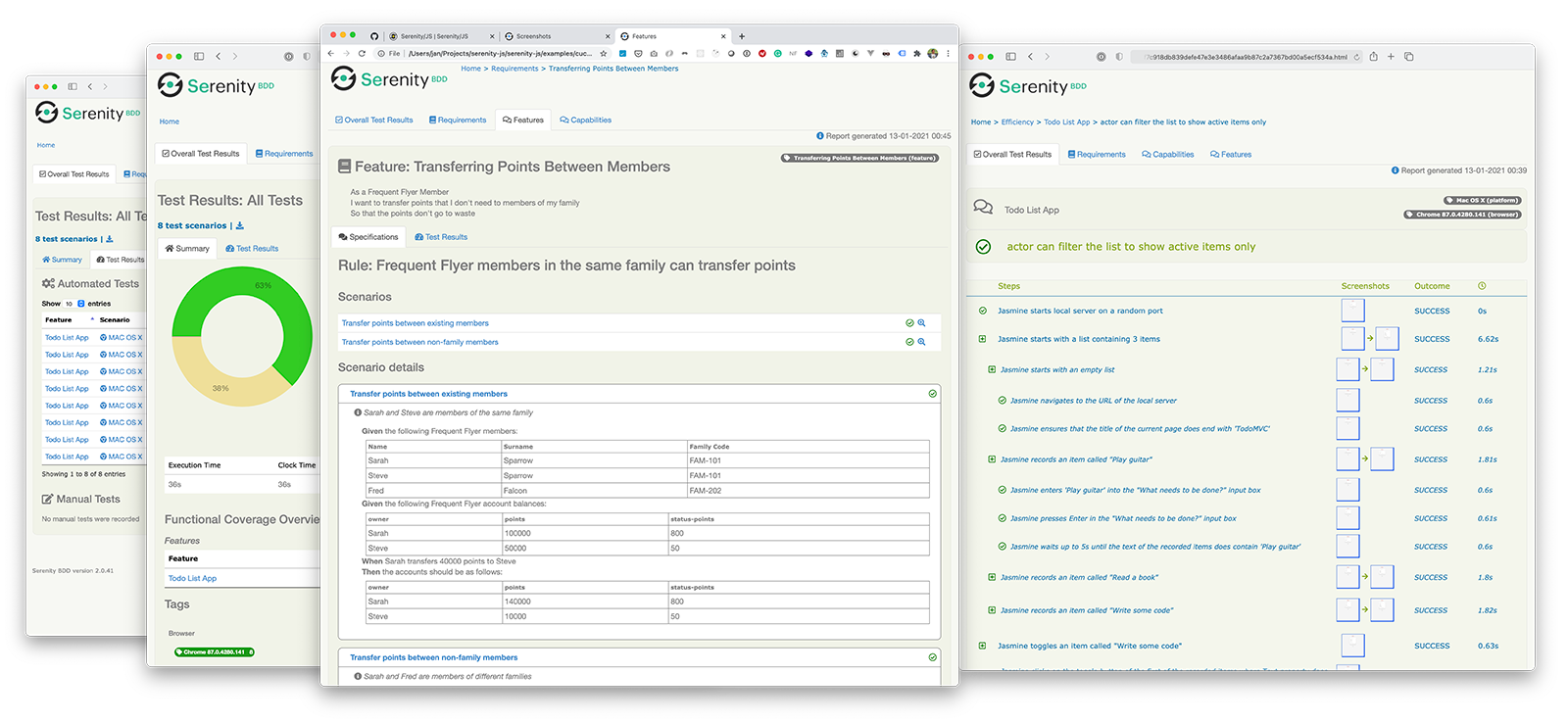
exports.config = {
    framework: 'custom',
    frameworkPath: require.resolve('@serenity-js/protractor/adapter'),

    serenity: {
        crew: [
            '@serenity-js/console-reporter',
            '@serenity-js/serenity-bdd',
            ['@serenity-js/core:ArtifactArchiver', { outputDirectory: './target/site/serenity' }],
            ['@serenity-js/web:Photographer', { strategy: 'TakePhotosOfFailures' }],
        ]
    },
};
{
  "scripts": {
    "clean": "rimraf target",
    "test": "failsafe clean test:execute test:report",
    "test:execute": "protractor ./protractor.conf.js",
    "test:report": "serenity-bdd run --source ./target/site/serenity --destination ./target/site/serenity"
  }
}
This requires additional dependencies:
- npm
- Yarn
- pnpm
npm install --save-dev @serenity-js/serenity-bdd npm-failsafe rimraf
yarn add --dev @serenity-js/serenity-bdd npm-failsafe rimraf
pnpm add --save-dev @serenity-js/serenity-bdd npm-failsafe rimraf
→ Learn more: Serenity BDD Reporter guide | Migrating to the HTML Reporter
Migrating from Protractor to Serenity/JS
Serenity/JS accommodates both classic Protractor tests and Serenity/JS Screenplay Pattern scenarios, allowing you to migrate to Screenplay gradually while keeping your existing test suites working and providing value to your organisation during the migration. With Serenity/JS, there's no need for a big-bang rewrite!
If you have an existing Protractor test suite and want to upgrade to a more modern web integration tool like Playwright or WebdriverIO, you'll need to:
- Upgrade your Node.js to the latest Long-Term Support (LTS) version, such as v24.21.0
- Install Serenity/JS dependencies for Protractor, as well as Java Runtime Environment if you'd like to use Serenity BDD reports
- Migrate your existing Protractor tests to use Serenity/JS Screenplay Pattern web APIs, which you can do gradually while keeping the remaining scenarios working
- When all your test scenarios are using Serenity/JS Screenplay Pattern web APIs and there are no Protractor API calls left, introduce Playwright or WebdriverIO to ensure your migrated scenarios work with the new integration library
- Remove Protractor dependencies and enjoy your modernised test suite!
Migrating existing Protractor test scenarios to follow the Serenity/JS Screenplay Pattern can be a big undertaking, depending on the size, complexity, and stability of your current test suite. Not to mention that every team has a slightly different Protractor setup and uses the tool in different ways, which makes automating the migration process challenging.
When migrating to Serenity/JS, start with the easy scenarios so that you can focus the first steps of your migration on making sure your continuous integration and reporting infrastructure work reliably. This way you'll build a stable foundation upon which you can migrate the more complex tests.
Remember, if your current Protractor test suite is reasonably stable, still works and provides value, there's no need for a risky big bang rewrite as you can migrate it one scenario at a time while keeping the existing tests working. However, if your current Protractor test suite doesn't work and you'd rather delete it than migrate it, you might prefer to start from scratch and use Serenity/JS with Playwright or WebdriverIO straight away. The choice is yours and Serenity/JS will support you either way.
Locating elements
To identify web elements with Serenity/JS you use the Page Element Query Language.
In short:
PageElementrepresents a single HTML element,PageElementsrepresent a collection of HTML elements and lets you filter it based on your criteria.Byrepresents portable locators used to identify the elements,
For example, to identify an element <h1 id="title">My article</h1> in plain Protractor you'd say:
element(by.css('h1.title'))
Serenity/JS has a similar construct and allows you to specify a description to be used when reporting interactions with the element:
import { By, PageElement } from '@serenity-js/web'

PageElement.located(By.css('h1.title'))
However, Serenity/JS also allows you to specify a human-readable description to be used when reporting interactions with the element:
import { By, PageElement } from '@serenity-js/web'

PageElement.located(By.css('h1.title'))
    .describedAs('article title')
The below table shows how you can translate common Protractor element finder expressions to Serenity/JS page element expressions:
| Protractor | Serenity/JS |
|---|---|
element(by.css('.selector')) | PageElement.located(By.css('...')) |
element(by.id('...')) | PageElement.located(By.id('...')) |
element(by.xpath('...')) | PageElement.located(By.xpath('...')) |
element(by.model('...')) | PageElement.located(By.css('[ng-model="..."]')) |
element(by.repeater('...')) | PageElement.located(By.css('[ng-repeat="..."]')) |
element(by.cssContainingText('.selector', 'text')) | PageElement.located(By.cssContainingText('.selector', 'text'))or for greater flexibility: PageElements.located(By.css('.selector')).where(Text, includes('text')).first() |
element(by.buttonText('Submit')) | PageElements.located(By.css('button')).where(Text, equals('Submit')).first() |
element.all | PageElements.located(By.css('...')) |
Note how with Serenity/JS you can easily express complex queries using intuitive syntax.
For example, you can locate the last <button /> which text meets some expectation:
import { By, PageElements, Text } from '@serenity-js/web'
import { equals } from '@serenity-js/assertions'

PageElements.located(By.css('button'))
    .where(Text, equals('Submit'))
    .last()
You can create aliases for expressions you use frequently:
import { By, PageElements, Text } from '@serenity-js/web'
import { equals } from '@serenity-js/assertions'

const approveButton = () =>
    PageElements.located(By.css('button'))
        .where(Text, equals('Approve'))
        .first()
And you can also compose page elements, making them reusable:
import { actorCalled, Expectation } from '@serenity-js/core'
import { equals } from '@serenity-js/assertions'
import { By, Click, PageElement, PageElements } from '@serenity-js/web'

const clientNameField = () =>
    PageElement.located(By.css('[data-test-id="client-name"]'))
        .describedAs('client name field')

const invoiceRecordForClientWhereName = (expectation: Expectation<string>) =>
    PageElements.located(By.css('li.invoice'))
        .where(Text.of(clientNameField()), expectation)
        .first()

await actorCalled('Alice').attemptsTo(
    Click.on(
        approveButton().of(invoiceRecordForClientWhereName(equals('Acme')))
    )
)
Learn more:
Retrieving information
To retrieve information about the current web page, use Page.current().
| Protractor | Serenity/JS |
|---|---|
browser.getCurrentUrl() | Page.current().url().href |
browser.getTitle() | Page.current().title() |
For example, to navigate to a page and then assert on its title and URL you can say:
import { actorCalled } from '@serenity-js/core'
import { Ensure, endsWith, equals } from '@serenity-js/assertions'
import { Navigate, Page } from '@serenity-js/web'

await actorCalled('Amanda').attemptsTo(
    Navigate.to('https://serenity-js.org'),
    Ensure.that(
        Page.current().title(),
        endsWith('Serenity/JS')
    ),
    Ensure.that(
        Page.current().url().href,
        equals('https://serenity-js.org')
    ),
)
To retrieve information about a page element, use Serenity/JS web questions:
| Protractor | Serenity/JS | Notes |
|---|---|---|
element(by.id('...')).getAttribute('class') | CssClasses.of(pageElement) | Serenity/JS returns an array of CSS classes to make assertions easier, instead of a single string like plain Protractor |
element(by.id('...')).getAttribute('value') | Value.of(pageElement) | Serenity/JS has a dedicated question for retrieving the value attribute of <input /> elements |
element(by.id('...')).getText() | Text.of(pageElement) and Text.ofAll(pageElements) | Serenity/JS makes it easier to retrieve text content of all elements in a collection |
For example, to navigate to a page and assert on the CSS classes of an element, you could say:
import { actorCalled } from '@serenity-js/core'
import { By, CssClasses, Navigate, PageElement } from '@serenity-js/web'
import { Ensure, include } from '@serenity-js/assertions'

const startAutomatingButton = () =>
    PageElement.located(By.cssContainingText('.button', 'Start automating'))
        .describedAs('"Start automating" button')

await actorCalled('Amanda').attemptsTo(
    Navigate.to('https://serenity-js.org'),
    Ensure.that(
        CssClasses.of(startAutomatingButton()),
        include('button--primary')
    ),
)
Performing interactions
To interact with a web page or a page element, instruct an actor to perform a desired interaction. Note that Serenity/JS also consistently models all assertion, synchronisation logging, debugging, and control flow statements as interactions too.
For example, to navigate to a page, click on a button and perform an assertion, you could say:
import { actorCalled } from '@serenity-js/core'
import { By, Click, Navigate, Page, PageElement } from '@serenity-js/web'
import { Ensure, equals } from '@serenity-js/assertions'

const startAutomatingButton = () =>
    PageElement.located(By.cssContainingText('.button', 'Start automating'))
        .describedAs('"Start automating" button')

await actorCalled('Amanda').attemptsTo(
    Navigate.to('https://serenity-js.org'),
    Click.on(startAutomatingButton()),
    Ensure.that(
        Page.current().url().path,
        equals('/handbook/tutorials/your-first-web-scenario/')
    )
)
Note that one of Serenity/JS super-powers is the ability to compose
interactions into tasks, like startTutorial() below,
which makes your code easy to share and reuse:
import { actorCalled, Task } from '@serenity-js/core'
import { Click, Navigate, Page } from '@serenity-js/web'
import { Ensure, equals } from '@serenity-js/assertions'

// ...

const startTutorial = () =>
    Task.where(`#actor starts the Serenity/JS tutorial`,
        Click.on(startAutomatingButton()),
        Ensure.that(
            Page.current().url().path,
            equals('/handbook/tutorials/your-first-web-scenario/')
        )
    )

await actorCalled('Amanda').attemptsTo(
    Navigate.to('https://serenity-js.org'),
    startTutorial(),
)
Below table shows how you can replace Protractor-specific API calls with Serenity/JS web interactions:
| Protractor | Serenity/JS |
|---|---|
element(locator).click() | Click.on(pageElement) |
element(locator).clear() | Clear.theValueOf(pageElement) |
element(locator).sendKeys(text) | Enter.theValue(text).into(pageElement) |
Waiting and synchronisation
To express a synchronisation statement,
use Wait.until
or Ensure.eventually.
| Protractor | Serenity/JS |
|---|---|
element(locator).isPresent() | Wait.until(pageElement, isPresent()) |
element(locator).isEnabled() | Wait.until(pageElement, isEnabled()) |
element(locator).isSelected() | Wait.until(pageElement, isSelected()) |
element(locator).isDisplayed() | Wait.until(pageElement, isVisible()) |
Replacing Protractor with WebdriverIO
In many ways, WebdriverIO is very similar to Protractor:
- it integrates with the same test runners, such as Cucumber, Mocha, and Jasmine
- it works well with Serenity/JS
- it works with local browsers and remote Selenium Grids
- it supports multi-tab and multi-window test scenarios
- it supports mobile testing
- its configuration file follows a similar structure
Once you've migrated your test scenarios to follow the Screenplay Pattern and there are no Protractor API calls left in your code, follow WebdriverIO Protractor migration guide to:
Next, install Serenity/JS WebdriverIO module:
- npm
- Yarn
- pnpm
npm install @serenity-js/webdriverio --save-dev
yarn add @serenity-js/webdriverio --dev
pnpm add @serenity-js/webdriverio --save-dev
Update the script section in your package.json to use wdio instead of protractor:
{
  "scripts": {
    "clean": "rimraf target",
    "test": "failsafe clean test:execute test:report",
-   "test:execute": "protractor ./protractor.conf.js",
+   "test:execute": "wdio ./wdio.conf.ts",
    "test:report": "serenity-bdd run"
  }
}
Once your test suite works, remove Protractor and its related Serenity/JS module:
- npm
- Yarn
- pnpm
npm uninstall protractor @serenity-js/protractor --save
yarn remove protractor @serenity-js/protractor
pnpm remove protractor @serenity-js/protractor
Learn more:
Integration architecture
To recap, Serenity/JS integrates with Protractor through the @serenity-js/protractor module,
which acts as a test runner adapter and:
- Captures test execution events from Protractor and its test runners
- Translates them into Serenity/JS domain events
- Makes them available to Serenity/JS reporting services
This modular architecture enables Serenity/JS to enhance both classic Protractor scenarios and those following the Screenplay Pattern with advanced reporting capabilities.
To enable this integration, you need to:
- Configure Serenity/JS test runner adapter and reporting services in your
protractor.conf.jsfile - Optionally, use the Serenity/JS Screenplay Pattern APIs in your test scenarios
Next steps
Well done, your Protractor test suite is now integrated with Serenity/JS! 🎉🎉🎉
To take things further, check out:
- The Screenplay Pattern
- Serenity/JS Web Testing Patterns
- Serenity/JS Protractor project templates
- Serenity/JS Web API docs
- Serenity/JS Assertions API docs
- Serenity/JS examples on GitHub
- 📚 Our book, "BDD in Action, Second Edition"
Remember, new features, tutorials, and demos are coming soon! Follow Serenity/JS on LinkedIn, subscribe to Serenity/JS channel on YouTube and join the Serenity/JS Community Chat to stay up to date!
Don't forget to ⭐️ Serenity/JS on GitHub to help others discover the framework!